

A product photo quality checklist helps an ecommerce team review an edited batch consistently before upload. A photograph can look polished on its own while still having the wrong crop, missing a product detail or using a different colour treatment from the rest of the catalogue. Review both the individual files and the set as a whole.
How to use this product photo quality checklist
Keep the original photographs, approved sample and delivery brief available during review. Check against the requirements you actually agreed rather than relying on a general impression. Record filenames and marked examples so that any corrections can be made without guessing.
Start with the most complex products, then sample files across the batch. If a recurring issue appears, ask for that issue to be checked throughout the affected set. Confirm any revised sample before approving a new production approach.
1. Confirm product shape and completeness
Compare the edit with the original. Check handles, straps, feet, rails, logos, stitching and internal openings. A clean selection is not successful if it removes part of the item or changes its proportions. Distinguish background distractions from features that belong to the product.
For used or vintage goods, make sure the agreed treatment does not hide condition information that matters to a buyer. Ask the editor when a mark is ambiguous rather than assuming it should disappear.
2. Inspect the edges and internal gaps
View the image at a detailed size and look for halos, jagged sections and leftover background pixels. Transparent output should also be checked against a contrasting background. A fringe that is almost invisible on white can become obvious in another layout.
Fine hair, fur and translucent materials need different treatment from a solid metal edge. If the sample loses these details, revisit the method instead of asking for a harder outline everywhere.
3. Compare colour and exposure
Use the approved reference to check important colours. Review related views together so that the same product does not appear to change colour from one photograph to the next. Look for unwanted casts, blocked shadows and highlights that hide texture.
Keep expectations realistic across viewing devices. An agreed colour workflow helps consistency, but every customer’s display will not show an identical result. Document any supplied colour reference and the required export profile.
4. Preserve texture and local detail
Inspect fabric, wood, metal and other distinctive surfaces for excessive smoothing. Check repeated patterns introduced by cloning and sharp halos caused by heavy sharpening. A clear product image should help the customer understand the material rather than making every surface look the same.
Review the output at normal listing size as well. Detail corrections should support the whole photograph instead of creating a finish that looks artificial when viewed in context.
5. Check shadows and contact with the background
Confirm whether the brief called for a preserved natural shadow, a constructed shadow, a drop shadow or a reflection. Review direction, softness and contact points. An isolated product should not appear to float unintentionally or cast conflicting shadows.
Compare the treatment across the catalogue. Different products may need different shapes of shadow, but their lighting style should still feel consistent with the approved reference.
6. Review crop, margins and apparent scale
Open the images together in a grid. Check alignment, the amount of space around each item and whether product scale is consistent within a category. Ensure that required parts are not cut off and that there is enough room for the intended layout.
Do not stretch a file to fit a canvas. Adobe’s explanation of pixel dimensions and resampling distinguishes changing image data from changing print resolution. For screen use, confirm the actual pixel dimensions in the brief.
7. Open the exported files
Verify the file format, transparency, dimensions and compression in the delivered files. A layered working document and a flattened export serve different purposes. JPEG does not preserve transparency, so confirm a suitable format when the background must remain transparent.
Check the destination’s current requirements before uploading. See Adobe’s export settings reference for how dimensions, file format and colour options are handled in Photoshop.
8. Confirm names, quantity and approval
Match the delivered filenames and image count with the production list. Make sure each view belongs to the correct product and that revisions have not left duplicate or obsolete exports in the upload folder.
Keep approval separate from a vague statement that the files look good. Record which batch and version were accepted, and retain the reference for future work. A product photo quality checklist becomes more useful when the same decisions can be repeated.
Review a real background-removal example
Our ladder cut-out case study shows why internal gaps and narrow product components deserve careful review.
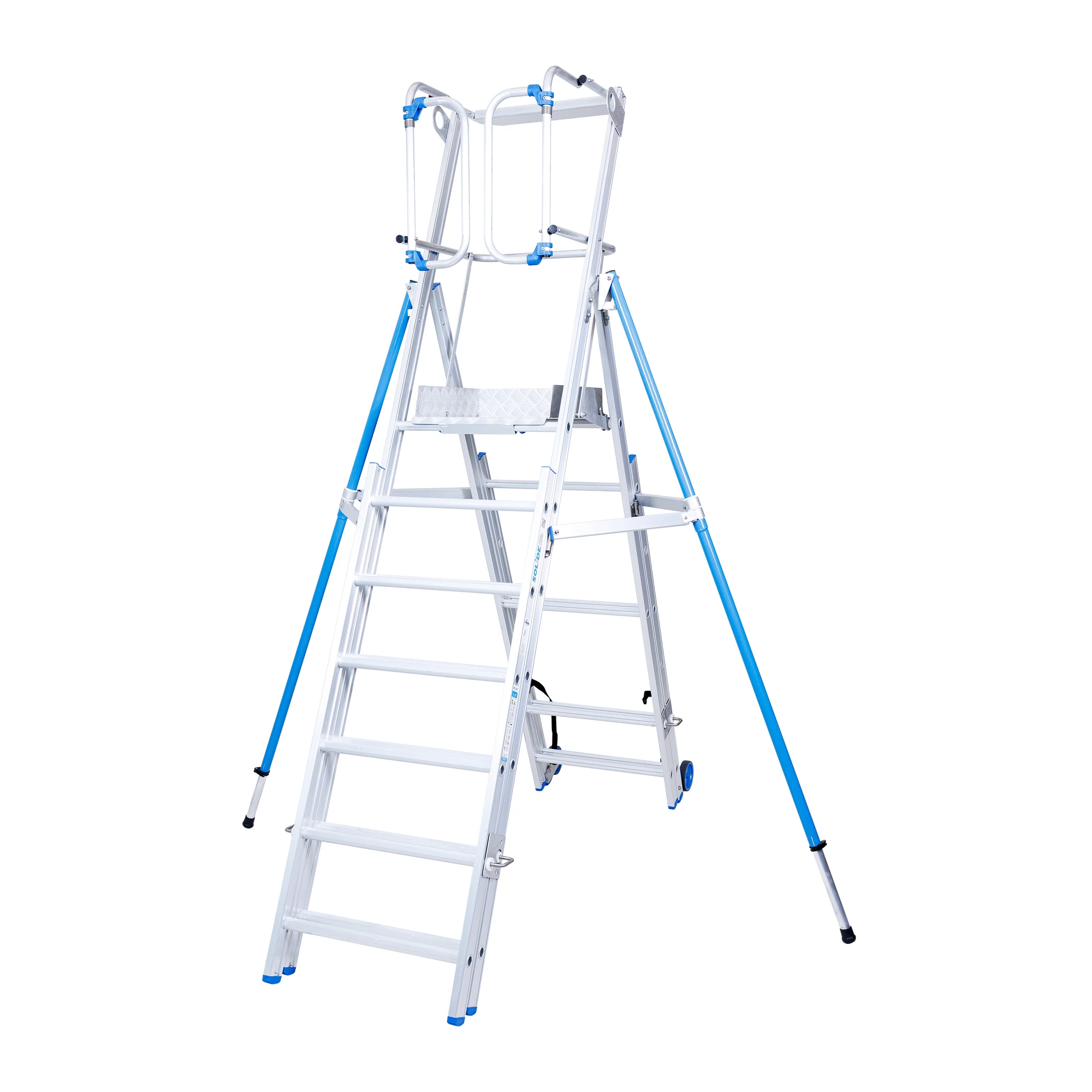
If your batch needs background removal or product retouching, send representative originals and the review requirements through our project enquiry page.
Car Parts Photo Editing: 8 Checks for Online Sellers
October 27, 2026[…] product photo quality checklist provides a fuller review process for catalogue […]