


Background cleanup removes distractions from a photograph while preserving the subject. For product images, the right approach depends on whether you need to repair the existing backdrop, isolate the item or prepare a consistent catalogue background. Choose the method after inspecting the product’s edge and material.
Plan background cleanup before selecting a tool
Keep an untouched original and agree the required result. A white background, transparent cut-out and repaired studio backdrop are different deliverables. Confirm whether the existing shadow should remain and whether dust or marks on the product itself are included in the work.
Inspect the file at both normal viewing size and a detailed view. A small distraction may be easy to repair locally; an uneven backdrop around intricate rails or handles may need a carefully refined selection. Avoid treating an automatic result as a finished image without checking it.
1. Selection tools: define the area to edit
Selection tools identify where a correction should apply. A simple colour-based selection may suit a plain backdrop, while a subject with similar colours to its surroundings needs closer attention. Check the complete boundary and internal openings before removing or replacing anything.
Use the selection as a starting point for an editable mask where possible. This allows missed details to be restored instead of permanently discarding them.
2. Pen tool: outline solid product edges
The Pen tool creates vector paths around suitable hard-edged objects. A saved path can support precise selections and repeat editing. Follow the actual shape rather than simplifying a complicated product into an inaccurate outline.
Hair, fur and translucent materials often need masking or a combined approach. Learn more about the scope of manual clipping path editing before choosing it for an entire batch.
3. Layer masks: keep background cleanup editable
A layer mask controls which areas remain visible while retaining the underlying image. It is useful when refining a cut-out, restoring a small detail or blending an edge. Review the result against both light and dark backgrounds to reveal fringes.
Check narrow gaps, straps and contact points as carefully as the outside contour. A clean edge should preserve the product rather than remove difficult parts.
4. Clone Stamp: control the replacement detail
Clone Stamp copies pixels from a chosen source area. It can help repair a backdrop when nearby detail offers a suitable replacement. Select a source that matches the surface and lighting, then inspect for repeating patterns and abrupt transitions.
Keep corrections on a separate layer when the tool settings and workflow allow it. This makes the result easier to compare and revise.
5. Healing tools: blend small distractions
Healing tools combine sampled or surrounding detail with the target area. They can be useful for isolated spots and marks on a relatively simple backdrop. Work in small areas and inspect the boundary so that the correction does not pull product detail into the background.
Adobe’s object-removal guide explains the different roles of healing, cloning and Content-Aware Fill. Choose based on the result needed rather than assuming the tools are interchangeable.
6. Content-Aware Fill: repair larger background areas
Content-Aware Fill uses surrounding image information to fill a selected area. It can provide a useful starting point for removing a backdrop distraction, but inspect the result for repeated texture, blurred patches and altered edges.
Keep the product outside the correction where possible and compare with the original. Do not use a plausible-looking fill to invent product information that was missing from the capture.
7. Adjustment layers: balance the remaining backdrop
Adjustment layers help control brightness and colour without applying the same change permanently to every pixel. Combine them with masks to target the background and preserve the product’s appearance.
Check the full image after a local adjustment. A brighter background should not create a halo around the subject or remove an important contact shadow.
Review the background cleanup before export
- Compare the edited product with the original for missing details.
- Inspect edges, internal gaps and contact shadows.
- Review colour and brightness across related images.
- Confirm crop, dimensions, background and output format.
- Open the exported files and check them at the intended listing size.
For repeat work, approve a representative sample and keep the reference with the brief. See our product photo quality checklist for a fuller batch review.
A real background cleanup example
This approved ladder project shows the original studio photograph and the isolated result. Notice the product structure and internal spaces that must remain intact. Read the ladder cut-out case study for project context.
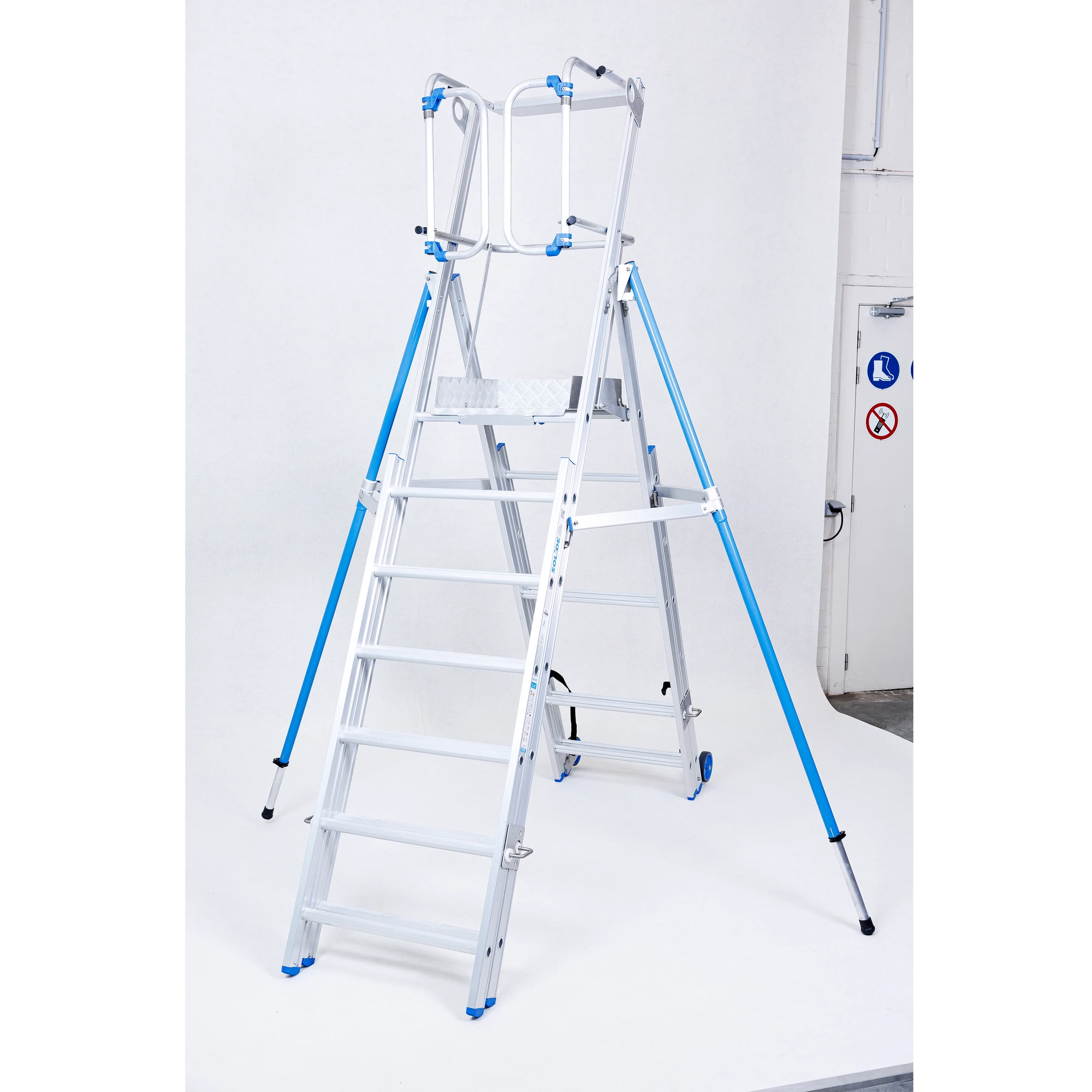
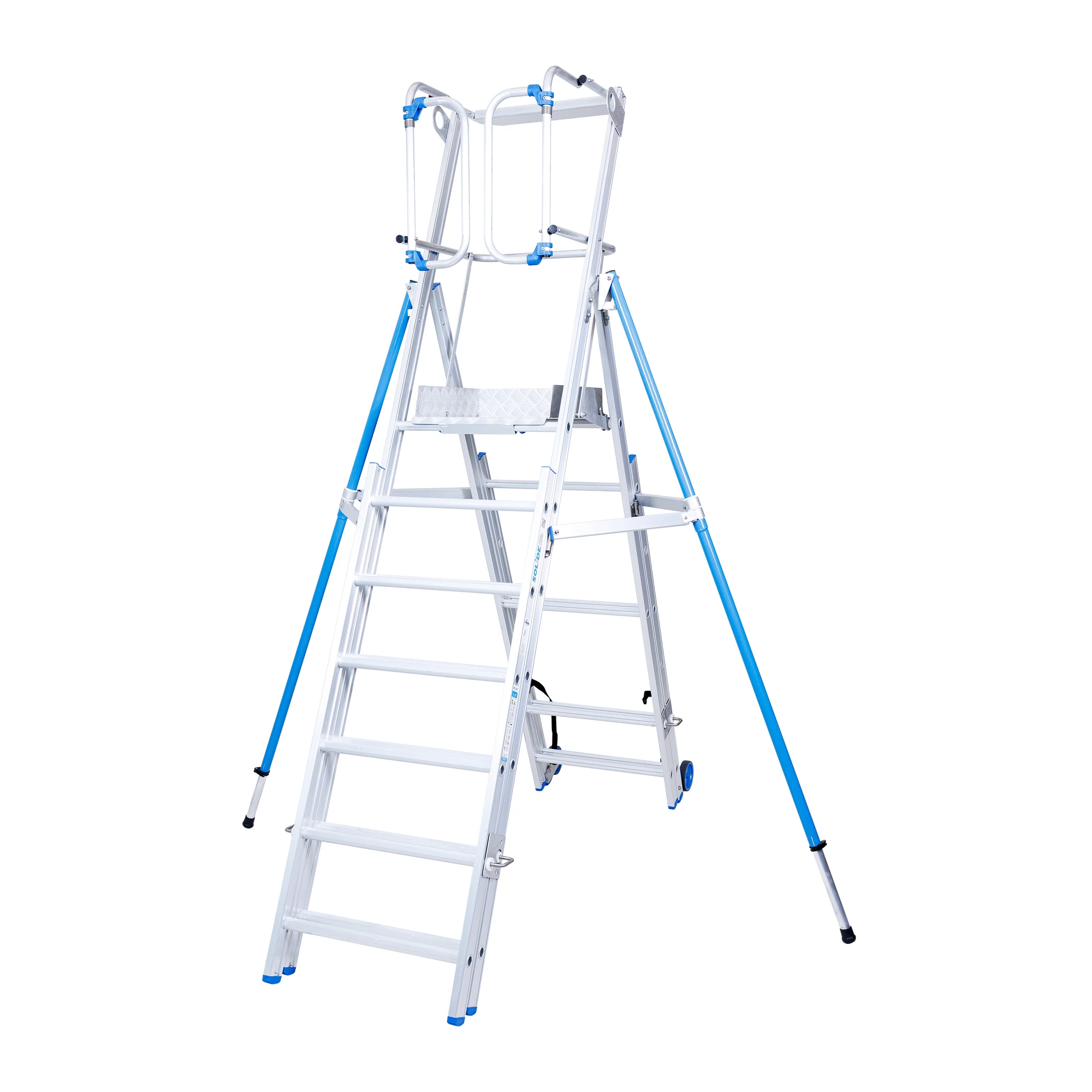
For background removal support, send representative originals and a clear reference through our contact page. Agree the editing scope, delivery formats and review process before production.